
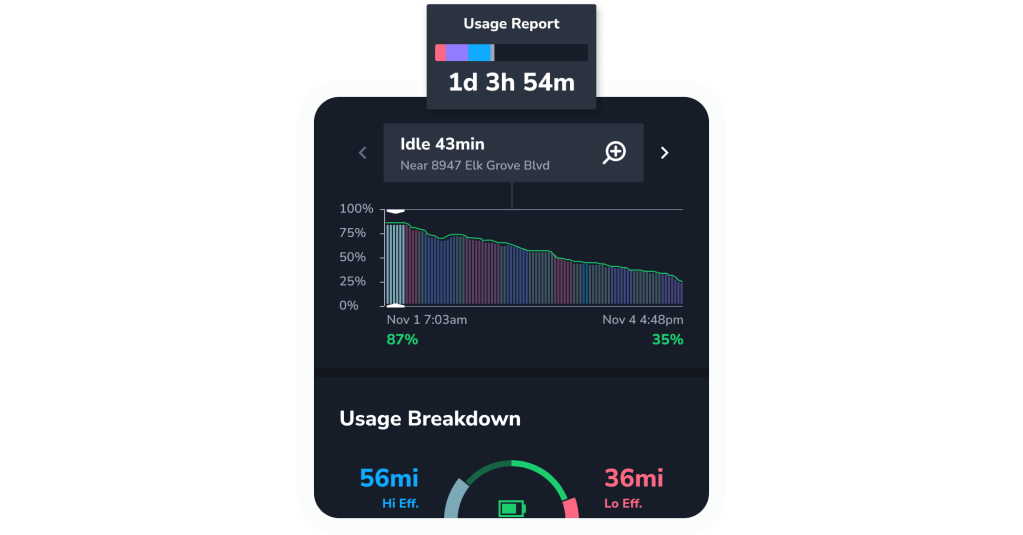
Get your own color-coded breakdown of how you use your electric vehicle, including your battery level, idle time, and efficiency stats.
How to find your usage report
- Start by opening or downloading TezLab on your phone
- Scroll down the home screen until you see your usage report
- Click on your snapshot to explore the full report
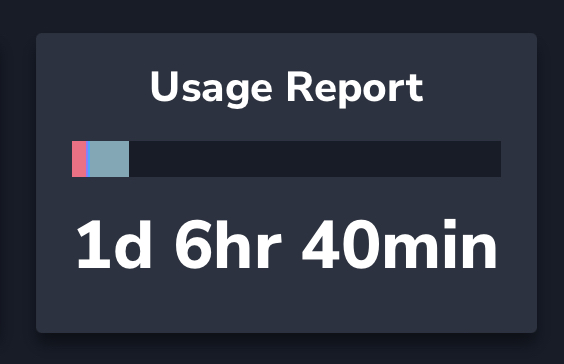
Explore your comprehensive report
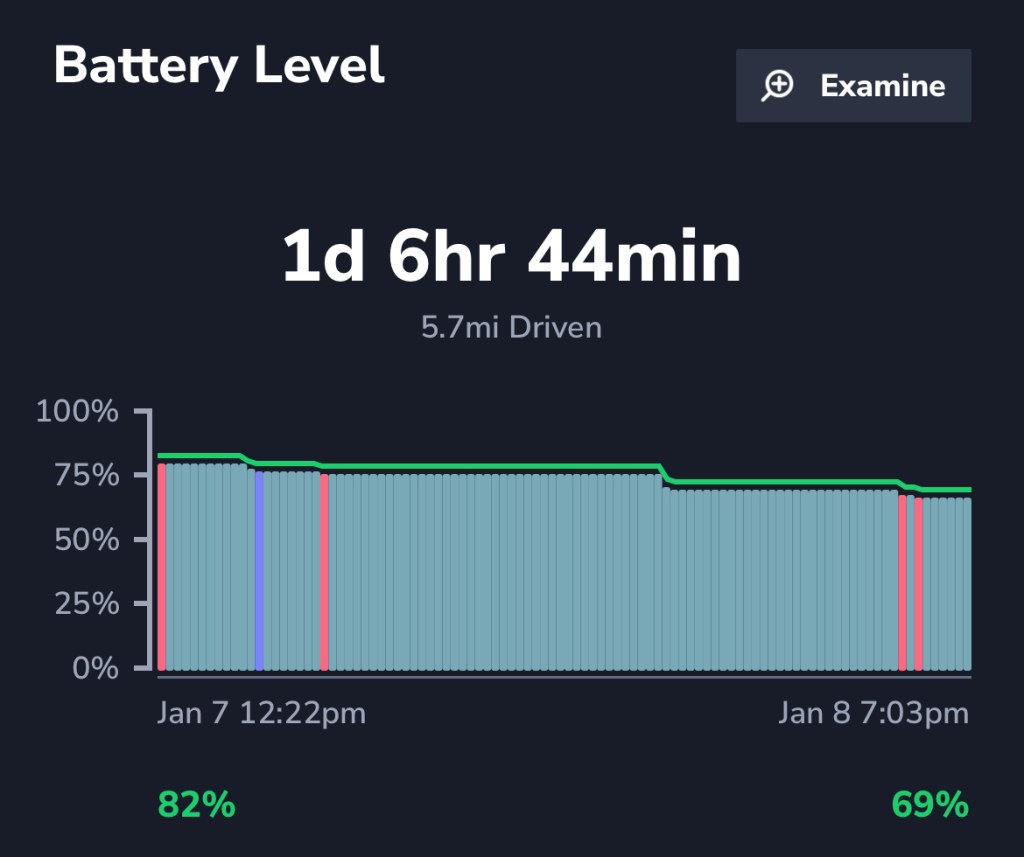

Battery level
See how many miles you’ve driven and how your battery has performed over the time period shown on your report.
Your drives are indicated by colorful markers, and are color-coded by efficiency. Red indicates the lowest efficiency and green indicates the highest efficiency.
Pro tip: tap the “Examine” option in the top right for a detailed play by play of exactly how your EV was functioning for each component of your report.
To unlock your Pro Usage Report with Detailed Idle Analysis, subscribe to TezLab Pro.
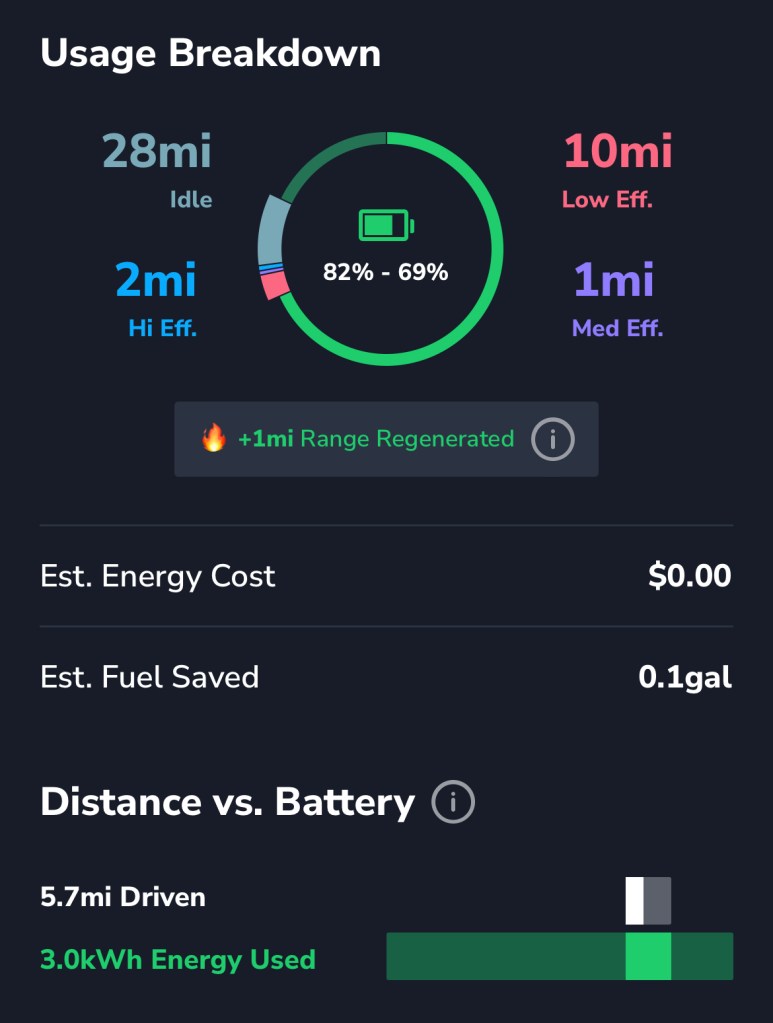
Usage breakdown and distance vs. battery
See your most noteworthy stats, such as distances traveled at high, medium, and low efficiency, as well as range regenerated.
The range prediction, which assumes a certain amount of regenerative braking will take place, has already been accounted for in this metric.
You can also find information on your idle metrics, battery range, and estimated energy cost and fuel saved.
Learn more about cost tracking in our post Your EV Savings on Gas and Charge Costs.
Your Distance vs. Battery chart shows how your range depleted (faded white) stacks up against your distance driven (white). The better your efficiency, the smaller the faded white area will be!
In green, you’ll find your starting and ending battery level as a proportion of your entire battery.
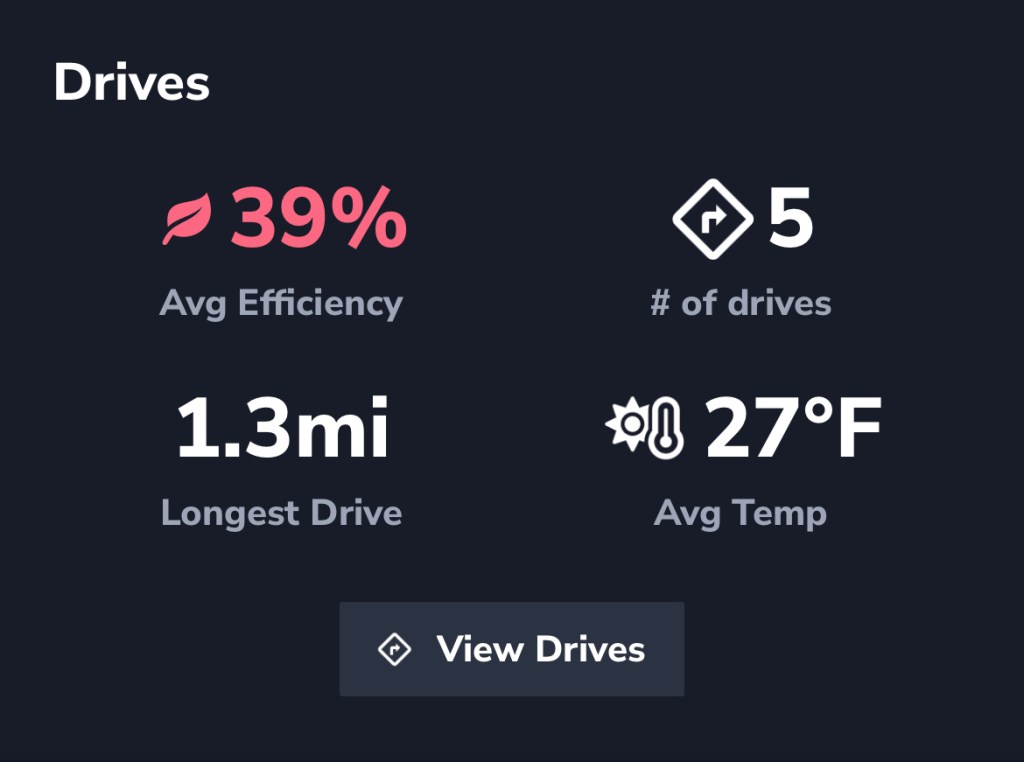
Drives
Your driving overview shows your average efficiency over the usage report time period, as well as number of drives, the length of your longest drive, and average temperature.
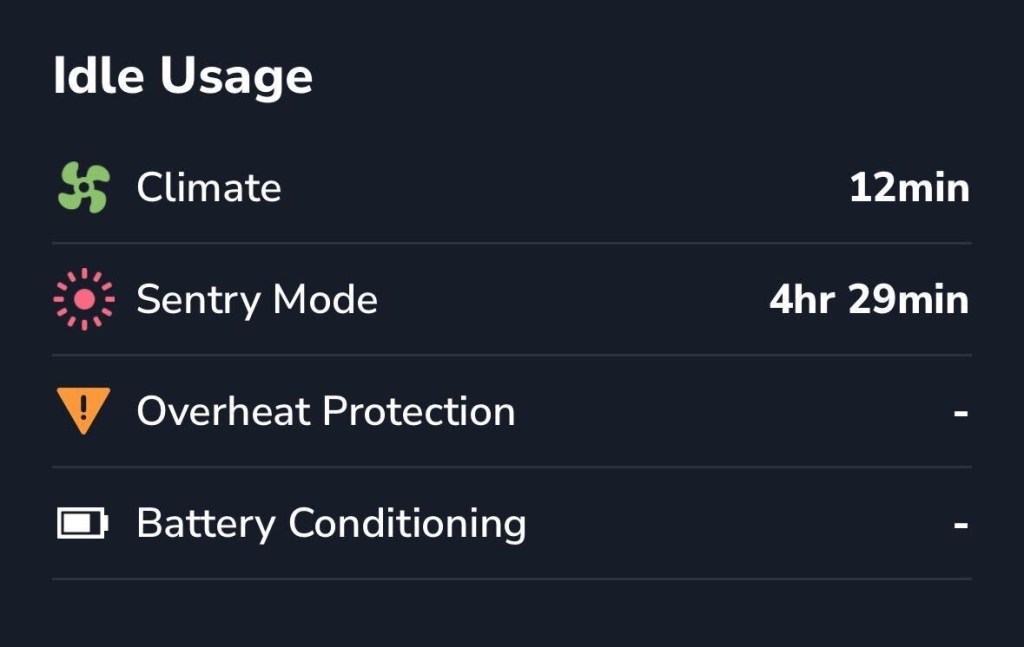
Idle usage
Find out exactly how your EV functions during your idle times, including climate activity, when Sentry Mode is turned on (when your vehicle’s cameras and sensors remain active), overheat protection information, and battery conditioning stats.
Share your report

At the bottom of your report, you have the option to share your usage report on TezLab by creating a new post.
Happy driving!
Download TezLab here, and subscribe to TezLab Pro for full access to features, including your Pro Usage Report with Detailed Idle Analysis.
 Tezlab Blog
Leave a comment