
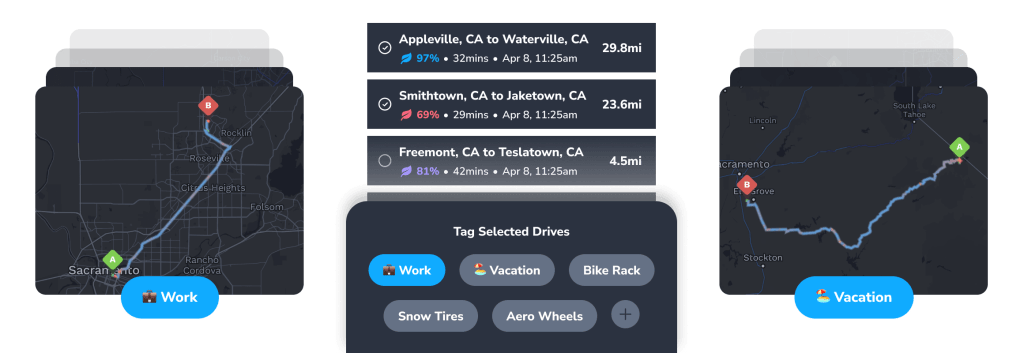
Get all your driving data seamlessly organized by category, from Work and Personal tags to client by client breakdowns and weekend getaways.
Learn how to easily categorize your drives in the Tezlab app using “tags.”
How to add tags to your drives
- To start adding tags, scroll down to the Recently Tracked section on your home screen and click into a drive.
- Select the the tag icon and choose a category for your trip.
- Select “Personal,” “Work,” or create your own custom tag.
You could make a custom tag for anything, from individual clients to errands. You could even create a tag called “Morning Drop-offs” if you’re curious about your comparative efficiency when you’re on carpool duty.
After you’ve tagged drives, you can view your drive summaries by category.
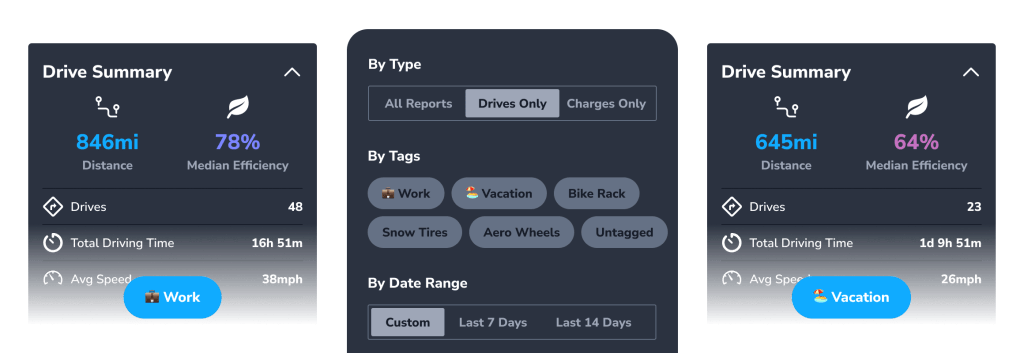
Data includes distance traveled, median efficiency, number of drives, driving time, and average speed.
Use your Tesla for work?
Use tags to filter your drives for easy expense reporting and reimbursement.
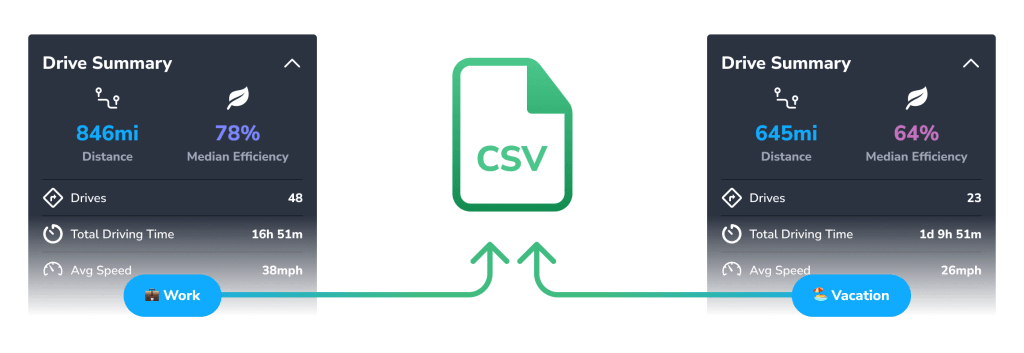
Pro tip: when you tag your work-related drives (or tag by individual client), you can export your mileage and charging expenses as a CSV directly from the app to get money back.
Check out the previous post in the Tezlab feature tour on expense reporting to learn more.
Drive like a pro
Once you tag your drives, you’ll likely start to notice patterns in your driving efficiency based on category.
Get ready to boost your driving with über-accurate insights using tags.
Download Tezlab to give it a go.
Happy driving!
 Tezlab Blog
Leave a comment